How AI agents talk to your engine
An agent reaches a game engine three ways: it edits files, runs commands, or uses the editor through an MCP server. What works in Godot, Unity, Unreal and the web.
An AI coding agent such as Claude Code or Codex cannot click around in an editor the way you do. It reads files, runs commands and calls tools. So the useful question about any engine is: through which doors can the agent get in? There are three.
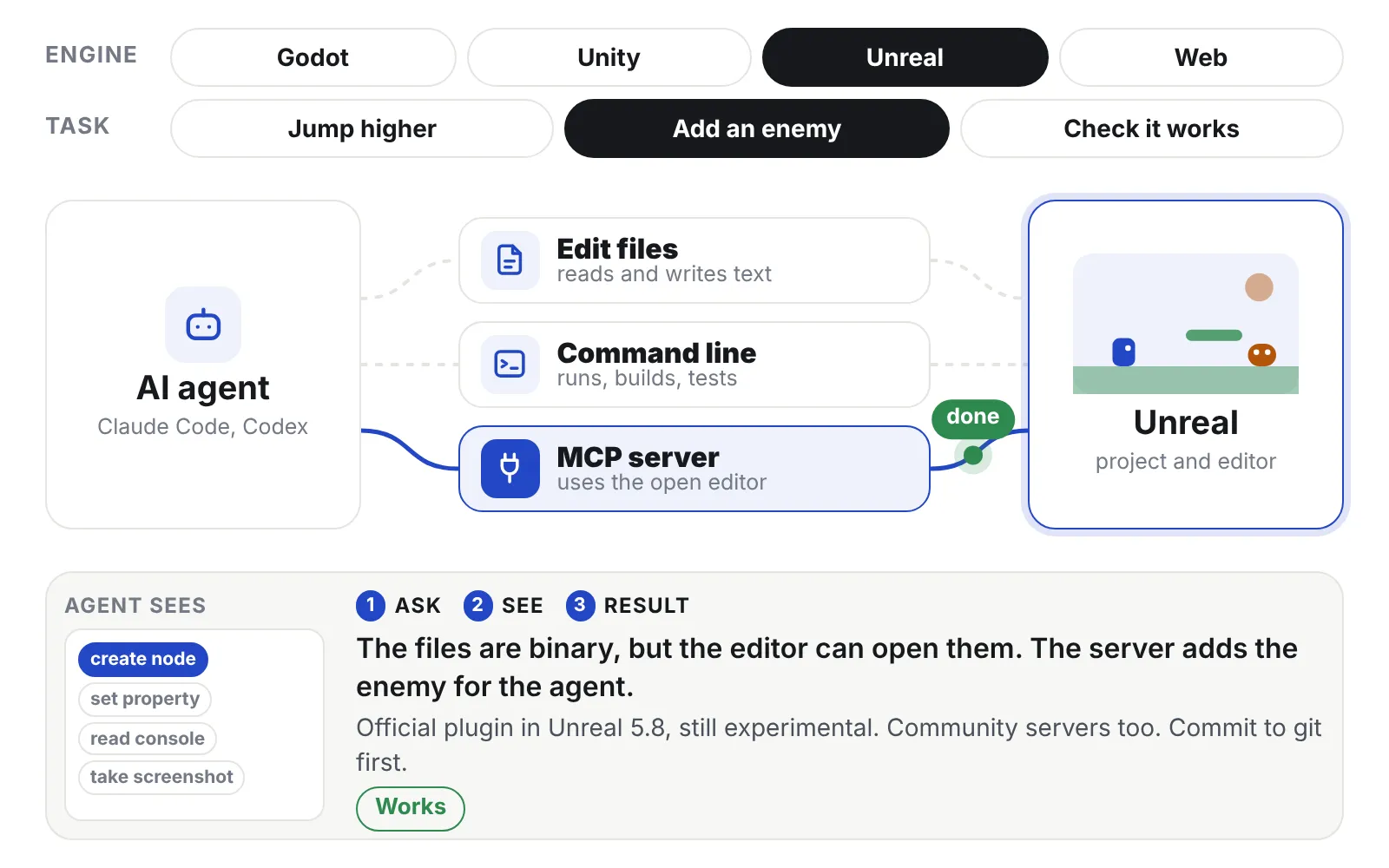
Try it below. Pick an engine and a task, then press a door. A message travels from the agent to the engine and back, and the panel shows what the agent can see on the way.
Try Unreal with "Add an enemy" through Edit files, then through the MCP server. The same job fails on a binary file and works through the editor.
Door 1: edit the project files
Every coding agent already has this door. It opens a file, changes it and saves it. This works as well as the engine’s files are readable text.
Godot is the best case. Scenes, resources and scripts are short text files. An agent can add an object to a scene by editing a few lines, and you can review the change.
Unity saves scenes and prefabs as text (YAML) only when a setting called Asset Serialization is set to “Force Text”. Check this setting first. The text is readable but long, and objects point at each other by ID numbers. Small edits are fine. Large scene changes by hand break easily. C# scripts are ordinary text.
Unreal is the hard case. C++ code is text, but Blueprints, levels, materials and most other assets are binary files. An agent cannot read or edit them directly. It needs one of the other two doors. In the demo above, this is the orange “Can’t do it” result.
Web stacks like Three.js and Phaser are all text: TypeScript, HTML, CSS and JSON.
Door 2: run the engine from the command line
An agent can run commands in a terminal. If the engine can build, run or test from a terminal, the agent can check its own work.
- Godot runs a script with no window using
--headless, and builds the game with--export-release. The option--quit-afterstops after a set number of frames, which is handy for a short test run. Headless mode draws nothing, so for screenshots, run with a window and let the game save its own image. - Unity runs a C# method from the terminal with
-batchmodeand-executeMethod, and runs tests with-runTests. It often takes a minute or more to start, so the loop is slow. - Unreal uses
UnrealEditor-CmdandRunUATto run, build and package. It works, but each step is heavy, and C++ compiles add more time. - Web games start with
npm run dev, which reloads instantly. Playwright opens the page, presses keys, takes a screenshot and reads the console. This is the shortest loop of the four.
Door 3: MCP servers that use the editor
MCP (Model Context Protocol) lets an agent call tools that another program offers. An engine MCP server runs inside or next to the open editor. It offers tools such as “create node”, “set property”, “read console” and “take screenshot”. This fills the gap where files are binary or too awkward to edit.
This area changes every month. As of 2026-10-27:
- Godot: no official server. Community servers exist, such as godot-mcp and godot-ai.
- Unity: an official server in the AI Assistant package. It is in open beta, needs Unity 6 or later, a Unity Cloud connection and an AI subscription or trial. A popular community server, unity-mcp, also exists.
- Unreal: an official MCP plugin in Unreal 5.8, still experimental. Community servers exist too.
- Blender: an official server from Blender Lab, for Blender 5.1 and later.
- Web: the browser is the editor. Microsoft’s Playwright MCP gives an agent the same open, click and screenshot tools.
Two warnings. These servers run code the model writes inside your editor, so keep the project in git and save a commit before each session. And more tools are not better. Some servers offer over a hundred tools, and every tool description uses up the agent’s limited memory for the conversation. Start with a small one.
The three doors side by side
| Edit files | Command line | MCP | |
|---|---|---|---|
| Godot | Yes | Yes | Community only |
| Unity | Partly (with Force Text) | Yes, slow start | Official beta and community |
| Unreal | Partly (C++ only) | Yes, heavy | Official is experimental |
| Web | Yes | Yes | Yes, through Playwright MCP |
What to set up first
Before any MCP server, set up two things.
One command that builds and runs the game. For example npm run dev, or a small script that starts Godot with the right options. Write it in the project’s instruction file for the agent (CLAUDE.md or AGENTS.md). If the agent has to guess how to start the game, it guesses differently every session.
A way for the agent to see the result. A screenshot after a short run, or a log file with clear lines like “scene loaded: battle” and every error. Without this, the agent judges the game by its code. Code that looks right often plays wrong.
Once those two work, add an MCP server only for the jobs that files and commands cannot do.
That is the end of the basics. If you still need to choose an engine, go back to part 2.