"The menus are annoying": game menu UI design with hotkeys, bulk actions and three more tricks
Five game menu UI tricks, side by side, that cut clicks from common actions: hotkeys, bulk actions, menus that remember, undo instead of confirm, and sort and pin.
What we asked“Make a web page that demonstrates the menu flow tricks (fewer steps between the player and common actions) one at a time, so anyone can see and feel each one within a few seconds. For each one, show the same short moment side by side: without it on the left, with it on the right, playing in a loop, with a caption that says what just happened and a replay button. Where it helps, let me play the moment myself. It will sit inside a blog post about 720 pixels wide, so it has to look good at that width and on a phone. Also make each one viewable alone with ?trick=<id>&solo, using these ids: hotkeys, bulk-actions, remember-choices, undo-not-confirm, sort-and-pin. Use one inventory and shop screen, replay the same task on both sides with a visible cursor, and show a running count of clicks and screens under each side. Use the internet freely for better results: free CC0 art, fonts or small libraries (for example Kenney's CC0 assets) are welcome; download anything you use into this folder so the page works without outside links, and list each item with its licence and source in CREDITS.md.”
What happened
- Loaded the menu-flow skill
- Downloaded Kenney's Tiny Dungeon sprites, a pointer from the Cursor Pack and the Kenney Mini Square font
- Wrote one inventory and shop game with each trick as one switch, so both screens run the same code
- Checked the page in headless Chrome at 720 px and 390 px, in light and dark mode, with no script errors and no sideways scrolling
- Tested Try it yourself with real clicks and key presses
- Added a table at the end of the page that replays each task instantly and lists the counts
Selling junk shouldn’t take a minute. But in many games it means: open the menu, open the bag, click an item, click Sell, click “Are you sure?”, and again for the next one. One extra click is nothing; the problem is that players repeat the same few actions hundreds of times. Each demo below uses one inventory and shop screen. A cursor does the same task on both sides at once: all tricks off on the left, one trick on the right. Under each screen, a running count shows clicks, key presses, screens, confirm dialogs and time. Try it yourself lets you do the task by hand on both sides and get your own counts.
1. Hotkeys
One key opens each main screen straight from play (I for the bag, M for the map, B for building), and the same key closes it. Common actions inside a screen get keys too, like E to equip, and every button shows its key. Stardew Valley works this way: E opens the menu, M the map and F the journal, straight from play (Stardew Valley Wiki). In our demo, equipping the Iron Sword and getting back to the game takes 6 clicks and 4 screens on the left, and 1 click plus 3 key presses on the right, without ever seeing the main menu. The input count only drops by a third, because a key press is still an input. The time saved comes from the screens you skip.
2. Bulk actions
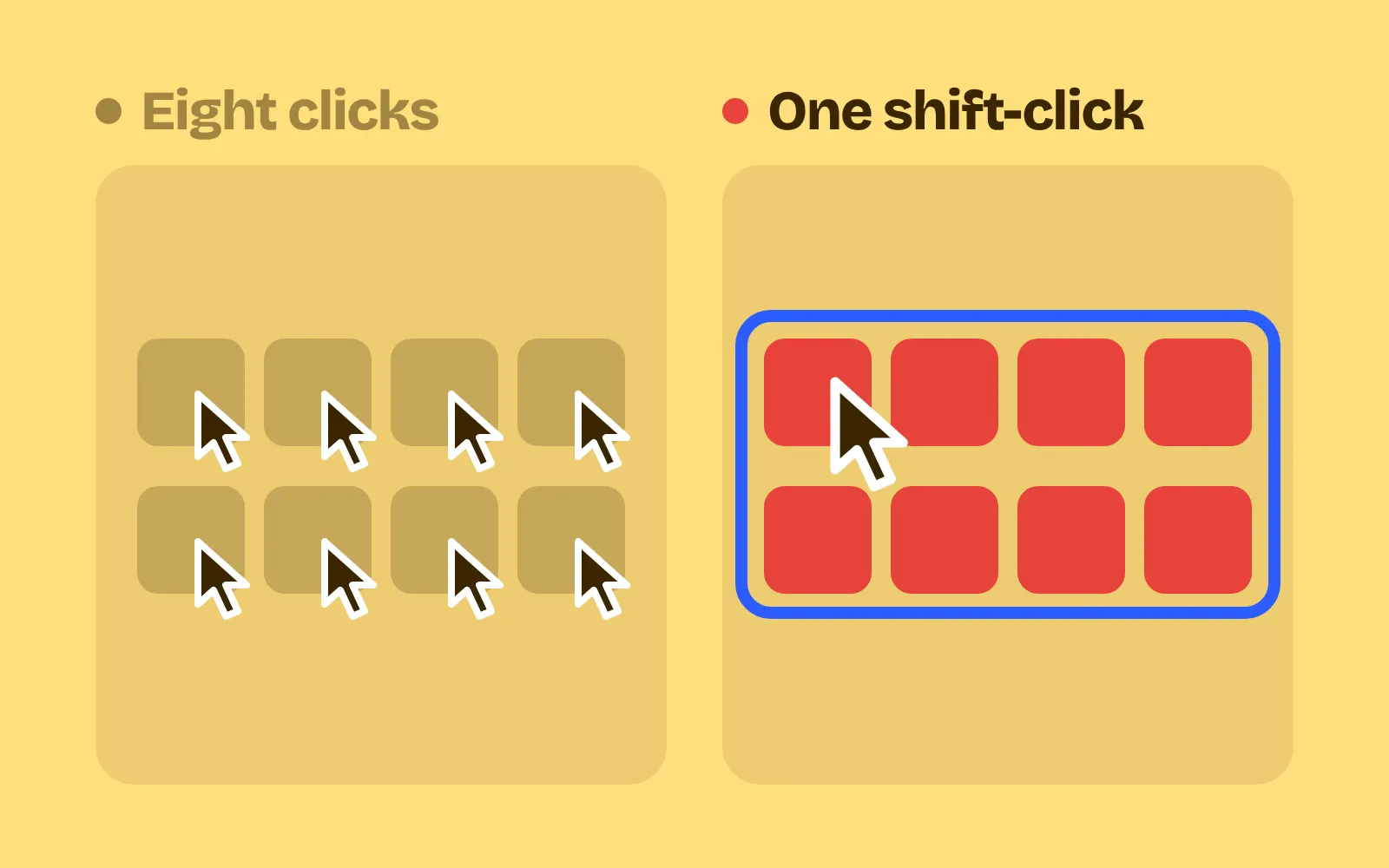
Let one input act on many things: “sell all junk”, buy a stack, move a whole pile, equip the best. Stardew Valley buys 5 items on a right-click and stacks of 25 with Ctrl+Shift held (Stardew Valley Wiki). In our demo, selling 4 junk items takes 12 clicks and 4 confirm dialogs on the left, and 2 clicks and 1 dialog on the right. One dialog is fine here, because it covers four items at once and lists them.
3. Remember choices
Reopen each menu where the player left it: the same tab, the same item, the same quantity. Put the cursor on the most likely choice. A player who bought 3 potions last time will probably buy 3 again. Xbox’s accessibility guidelines ask for predictable focus and easy ways back to earlier menus (Xbox Accessibility Guideline 112). In our demo, restocking 3 Health Potions takes 7 clicks on the left. On the right, the shop reopens on the potion with the quantity already at 3 and a “Buy 3 again” button: 3 clicks.
4. Undo, not confirm
If an action can be undone, don’t ask “Are you sure?”. Do it at once and show an Undo button for about 5 seconds, or keep a buyback list. Save confirm dialogs for actions that are costly and permanent, and then say exactly what will be lost. The Nielsen Norman Group warns that if you “cry wolf too many times, people will stop paying attention”, and that clicking through dialogs out of habit “provides no protection at all” (NN/g). Our demo shows exactly this. The task is to sell two items and keep the Lucky Ring, but items slide left after each sale, so a third click on the same slot picks up the ring. On the left, the third “Yes” is habit and the ring is gone for good (9 clicks, 3 dialogs). On the right, one click on Undo brings it back (7 clicks, no dialogs).
5. Sort and pin
Sort by what the player needs (usable items first), give one-click tabs for item types, and let players pin favourites to the top. Hick’s law says decision time grows with the number of choices, roughly with its logarithm (Wikipedia), so every unsorted page slows down every visit. In our demo, finding a Health Potion in a 40-item bag means scanning 3 pages and takes about 9 s on the left. On the right, the potion is pinned in the first slot: about 2 s.
Keep the safety nets
Fewer clicks is the goal, but not at any cost:
- Confirm what can’t be undone. Selling a rare item to a shop with no buyback, or deleting a save, still deserves a dialog. Make it rare, so players read it.
- Keep bulk actions narrow. “Sell all junk” should only touch items marked as junk, never gear the player might want.
- Don’t fight muscle memory. Remembering the last tab helps; reordering a list the player already knows by heart doesn’t. Pins should stay where the player put them.
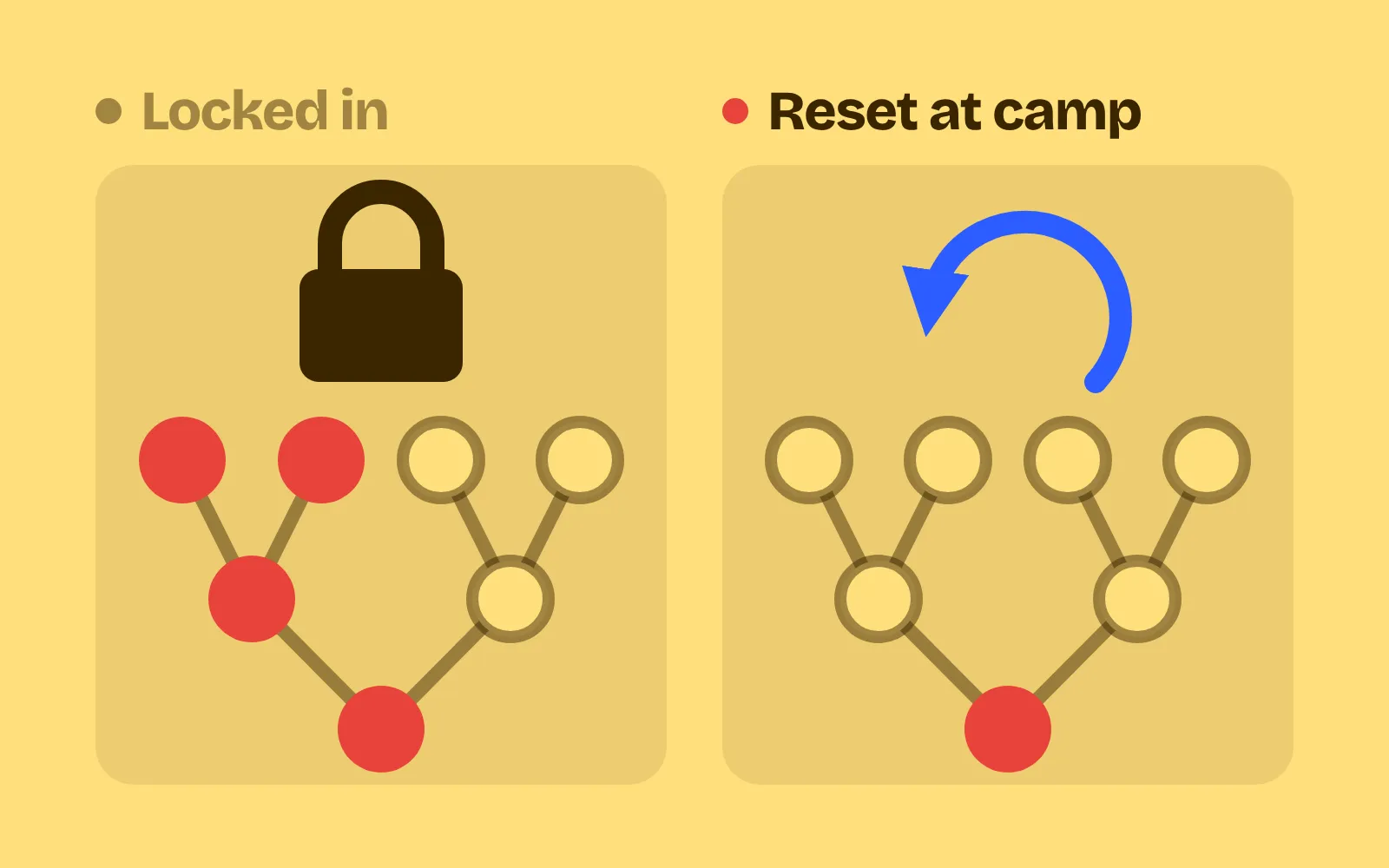
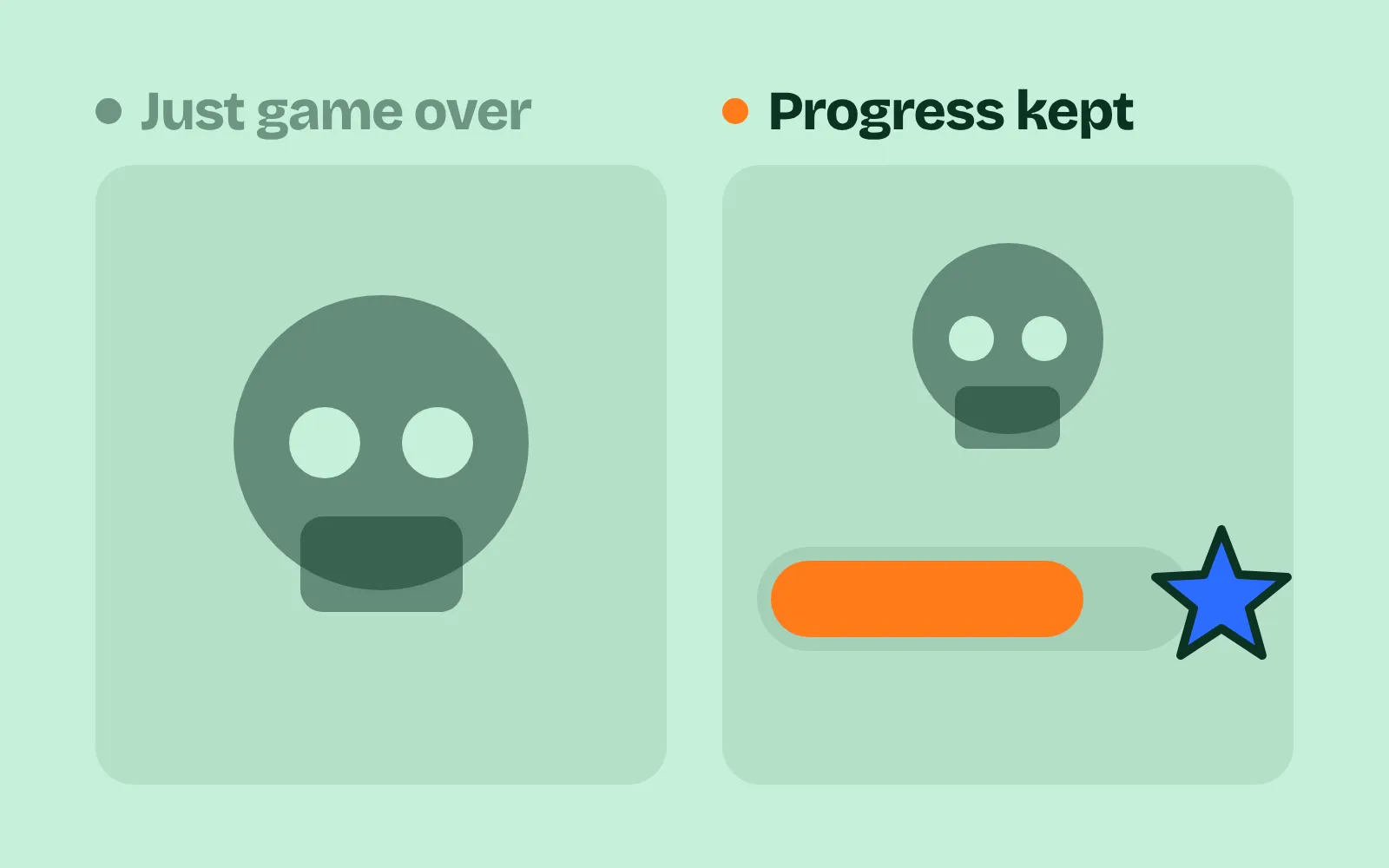
If undo is the trick you need most, the same idea applies to builds and skill points: see respec in games.
Add it to your game
- Copy the skill at the end of this page into your project.
- Ask your agent: “My menus take too many clicks. Make the common actions faster.”
- Play it, then tune in plain words: “The Undo button disappears too quickly.”
Art in the demos: Tiny Dungeon, Cursor Pack and Kenney Fonts by Kenney (CC0).
The skill that made it work
This is the whole skill we gave Claude Code. Copy it into your project and ask your agent to cut the clicks from your menus. The last step makes it count clicks, screens and confirm dialogs for your ten most common actions, with each trick off and on.
- List the ten most common menu actions (equip, sell, buy, build, move, assign) and count the clicks or key presses each takes now.
- Put every trick behind one named switch in a single settings object, all on by default, so each can be tested on its own.
- hotkeys. One key opens each main screen straight from play (I inventory, M map, B build) and the same key closes it. Common actions inside a screen get keys too (E equip, X sell), and every button shows its key.
- bulk-actions. Let one input act on many: shift-click moves a whole stack, a modifier buys 5 or 25, "sell all junk", drag or ctrl-click to select many, "equip best". Stardew Valley buys 5 on right-click and stacks of 25 with Ctrl+Shift.
- remember-choices. Reopen each menu on the last tab, cursor position, sort and filter. Remember the last quantity and target ("buy 10 again"). Put the cursor on the most likely choice.
- undo-not-confirm. No confirm dialog for anything that can be undone: do it at once and show an Undo button for about 5 s, or keep a buyback list. Confirm only actions that are costly and permanent, and then say exactly what will be lost.
- sort-and-pin. Sort by what players need (usable now, newest, value), give type filters as one-click tabs, group by type, and let players pin favourites to the top. The most used actions get the biggest buttons and the first spots.
- Measure it. Script the ten common actions with tricks on and off. Report clicks or key presses per action (repeated actions should drop by at least half), screens passed through, confirm dialogs met (only for costly permanent actions), and the time to find a named item in a 60-item inventory.
Save it as .claude/skills/menu-flow/SKILL.md in your project. Or connect your agent and type /aigamedev: it loads this skill with its reference files and the results from this post.