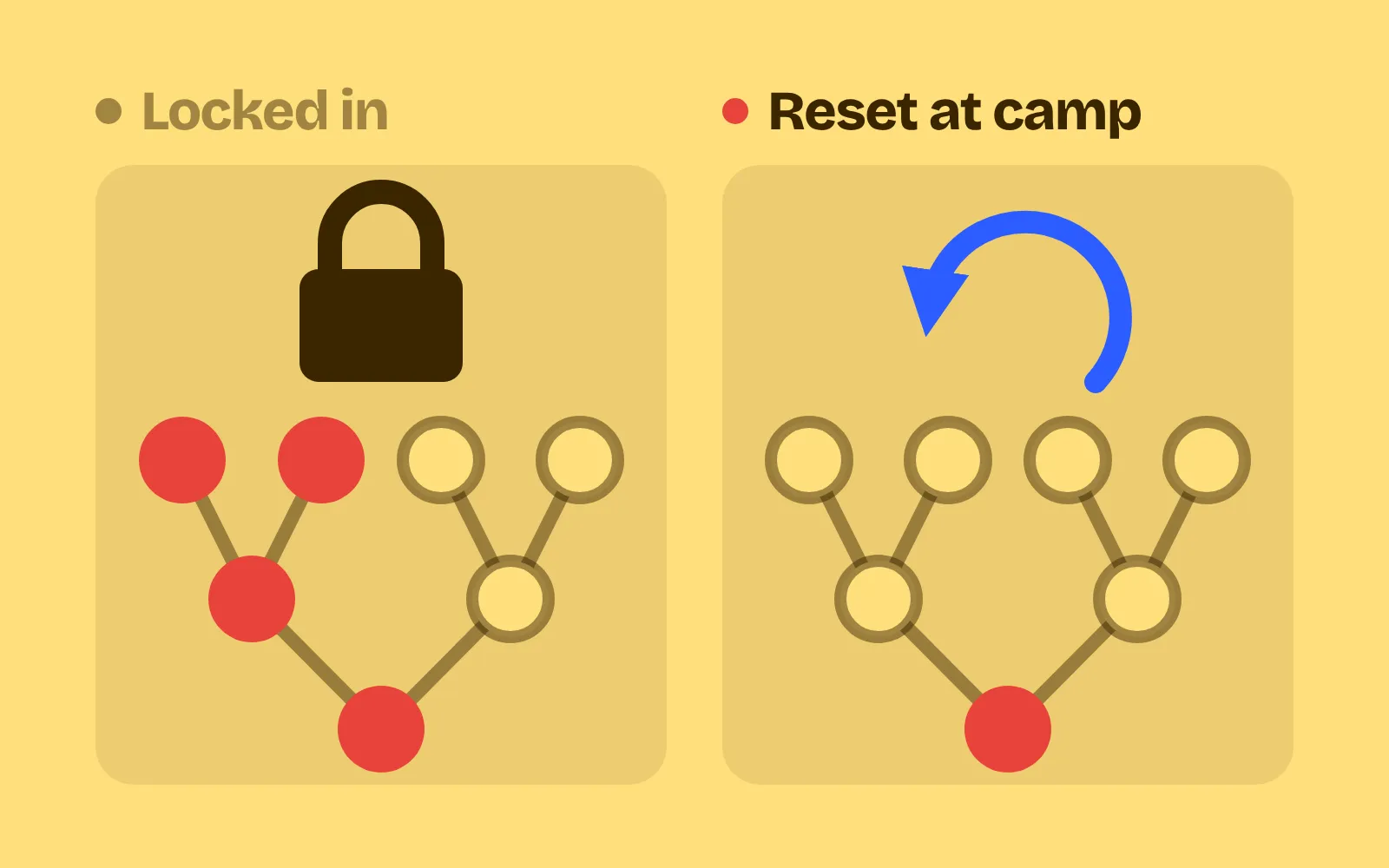
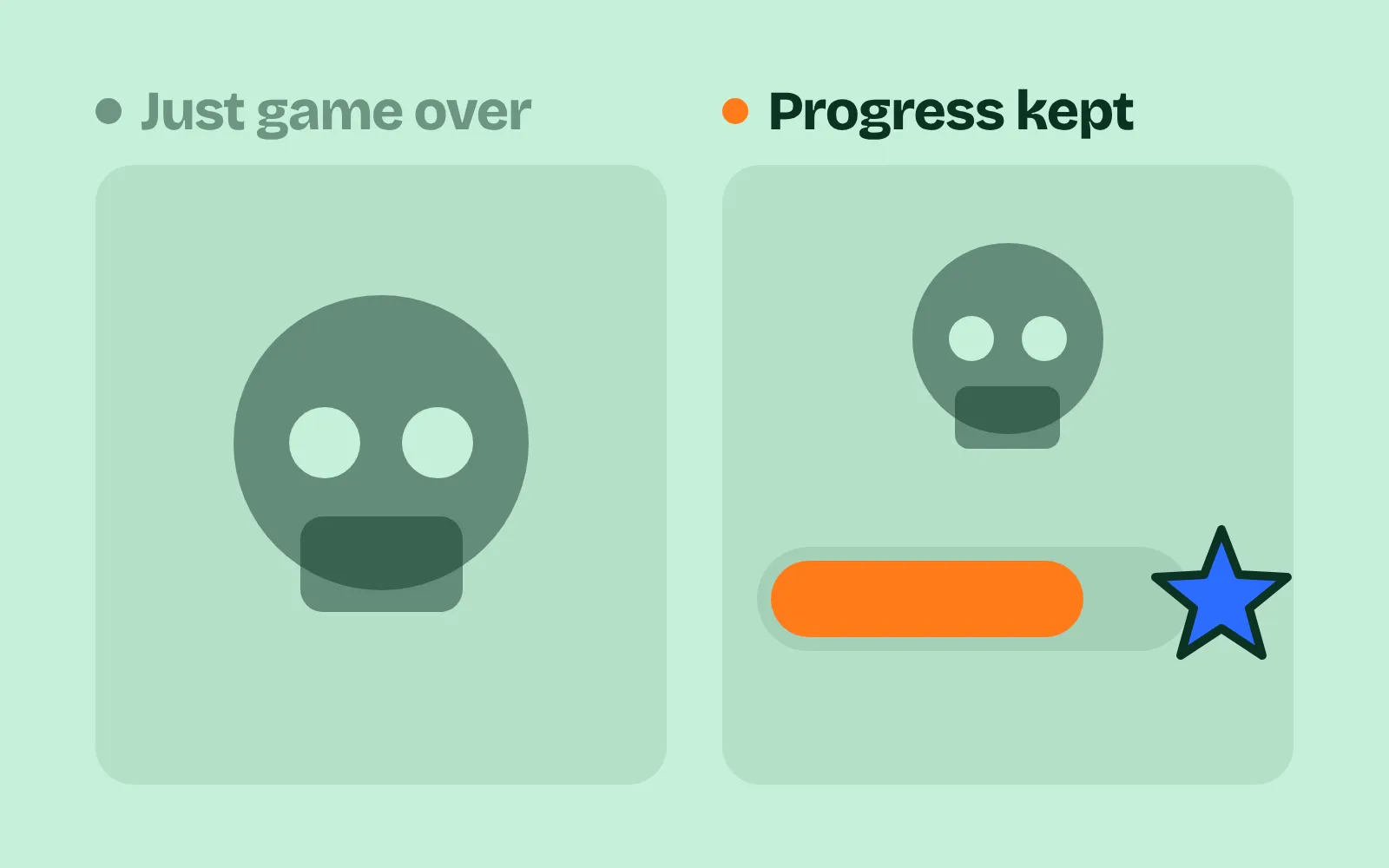
Why your game stutters when the screen fills up: object pooling, draw batching and three more game optimization techniques
Five game optimization techniques for smooth web games, side by side with live frame-time graphs: object pools, batched drawing, off-screen culling, work spread over frames and a quality scaler.
What we asked“Make a web page that demonstrates the performance tricks that keep a busy web game smooth one at a time, so anyone can see and feel each one within a few seconds. For each one, show the same short moment side by side: without it on the left, with it on the right, playing in a loop, with a caption that says what just happened and a replay button. Where it helps, let me play the moment myself. It will sit inside a blog post about 720 pixels wide, so it has to look good at that width and on a phone. Also make each one viewable alone with ?trick=<id>&solo, using these ids: object-pool, batch-draws, cull-offscreen, spread-work, quality-scaler. Both sides must run the same busy scene in real time with a live frame-time graph under each, and the left side must really do the slow work (allocating, unbatched drawing, no culling) rather than fake the stutter. Use the internet freely for better results: free CC0 art, fonts or small libraries (for example Kenney's CC0 assets) are welcome; download anything you use into this folder so the page works without outside links, and list each item with its licence and source in CREDITS.md.”
What happened
- Loaded the performance-budget skill
- Downloaded two of Kenney's CC0 packs (Space Shooter Remastered and Particle Pack) into the project
- Wrote a simulation that runs each side in its own background thread, so the slow side's stalls can't slow the fast side
- Found that normal canvases let the heavy left side slow the right one through the shared GPU, so both sides now draw on the CPU
- Made both sides share the same spark cap, and flew the batch-draws ships in lanes so they don't read as noise
- Checked all five at 720 px and in a 390 px phone-sized window with automatic sizing
Your game runs fine with ten enemies. Then the screen fills up with bullets and sparks, and it starts to stutter just when the fight gets exciting. At 60 frames a second each frame lasts about 16 ms, and the browser needs part of that to paint, which leaves your game about 10 ms of its own (web.dev). Stutter is what happens when one frame goes over.
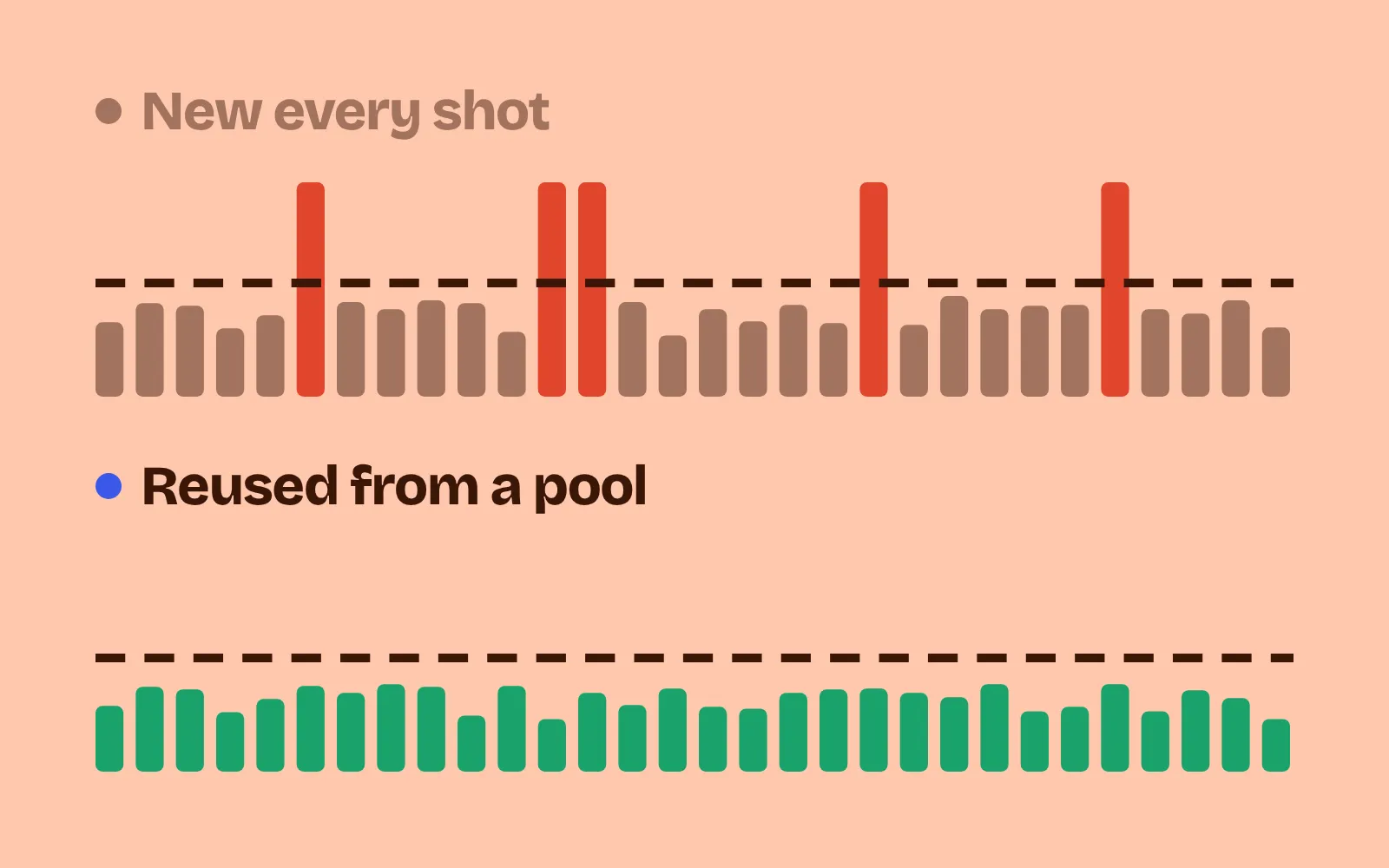
Each demo below runs the same busy scene twice, in real time. The left side really does the slow work (it creates objects, draws sprite by sprite, skips culling); the right side uses one trick. Each side runs on its own background thread, so the left can’t slow the right. Under each side, a live frame-time graph shows every frame as a bar: green is under the dashed 16.7 ms line, amber and red are over. After each loop, What just happened gives the real numbers from your device. Play it yourself lets you play the moment (on a phone, tap it first so the page still scrolls), and Light / Busy / Heavy changes the load. The scene size is set by a short speed test when the page loads, so your numbers will differ from ours.
1. Object pools
Every spark, bullet or damage number you create during play is garbage later, and the garbage collector has to stop and clean it up. For web games, the garbage collector “can often eat away at critically needed frame rate” (web.dev). A pool creates everything once, before play, and reuses it. Robert Nystrom’s Game Programming Patterns uses particle systems as the classic case (Game Programming Patterns). In our demo on a Mac, the left side made about 117 million objects per loop: typical frame 8.6 ms, worst 43 ms. The pooled right side made none: typical 5.3 ms, worst 10 ms. Watch the red spikes on the left graph; they come when the collector steps in.
2. Batched drawing
Every time you switch texture or blend mode, the browser does a small job. Thousands of small jobs cost more than a few big ones. “‘Batching’ draw calls into fewer, larger draw calls will generally improve performance” (MDN). Draw from one sprite sheet, group sprites by blend mode, and paint layers that don’t change (like the backdrop) once. This demo is the plain 2D-canvas version: the right side bakes every sprite into one sheet at its on-screen size and copies it to whole-pixel positions, which MDN also recommends (MDN). In our demo, the left side made about 6,600 texture or blend switches a frame and redrew the backdrop in 2,900 pieces: 21 ms a frame, against 8.9 ms on the right.
3. Off-screen culling
The camera shows a small part of the world (the blue box on the minimap). Drawing and testing everything else wastes most of the frame. Skip what is off screen, plus a small margin, and use a grid so each object only checks its neighbours for collisions. Checking every pair grows with the square of the count; storing objects “in a data structure organized by their locations” avoids that (Game Programming Patterns). A good grid cell is about twice the size of your largest collider. In our demo the left side drew all 6,500 rocks and tested 21 million pairs a frame: 24 ms. The right side drew about 360 and took 5 ms.
4. Spread the work over frames
Some jobs are big but not urgent, like pathfinding for a whole swarm. If every enemy re-plans in the same frame, that frame freezes. Instead, re-plan a few enemies each frame, taking turns, with a hard cap on the time you spend. Game programmer Allen Chou describes it simply: if a job takes too long for one frame, “split the work across multiple frames” (Allen Chou). Enemies rarely need to re-think more than 5 to 10 times a second, and about 2 ms a frame is a good cap. In our demo the left side re-planned 476 paths in one frame, twice a second, with spikes up to 65 ms. The right side never spent more than 2.3 ms of planning in a frame. You see it as the tall red bars at regular steps on the left graph.
5. Automatic quality scaling
Sometimes the work is simply too much for the machine. A quality scaler watches frame times. When they stay over budget for about 2 seconds, it steps down from High to Medium to Low: fewer particles, a lower canvas resolution, no glow. After a calm stretch it steps back up. Valve showed “adaptively scaling fidelity to consistently maintain VR framerate” at GDC 2016 (GDC Vault); news reports describe it raising quality again “when there are idle GPU cycles available” (TechRadar). In our demo the left side stayed on High through the storm and had 5.9 s of slow frames. The right side dropped to Medium after about 2 s, went back to High in the calm, and had 2.2 s of slow frames. The quality name sits in the corner of each scene. If your device handles High easily, the right side never steps down; try Heavy.
Measure first, then pick one
Each trick makes your code a little harder to read, so only use the ones your game needs:
- Time it first. Time your update, collisions, drawing, spawns and AI each frame with
performance.now(), and fix the three heaviest. A pool won’t help a game that is slow because of drawing. - Look at the worst frames, not the average. Players feel the 99th percentile and the frames over 50 ms. Our object-pool demo had a fine average and still stuttered.
- Test on a slow machine. Chrome DevTools can slow your CPU 4 times. A fast laptop hides most of these problems.
- Check memory stays flat. Heap size at the end of a busy scene should match the start.
- Don’t drop quality too fast. Wait about 2 seconds over budget before stepping down, and step back up only after a calm stretch, or the picture flickers between levels.
If your game also runs at different speeds on different screens, see delta time and fixed timestep. For effects that look good while staying cheap, see game particle effects.
Add it to your game
- Copy the skill at the end of this page into your project.
- Ask your agent: “My game stutters when the screen gets busy. Make it smooth.”
- Play it, then tune in plain words: “It still hitches when the boss explodes.”
Art and font in the demos: Space Shooter Remastered (with its Kenvector Future font) and Particle Pack by Kenney (CC0 1.0).
The skill that made it work
This is the whole skill we gave Claude Code. Copy it into your project and ask your agent to make your game smooth on busy screens. Every trick sits behind its own switch, and the last step runs one busy scene with the tricks on and off and reports the worst frames, not just the average.
- Find the hot paths: update loop, collisions, drawing, spawns, AI and pathfinding, and anything created during play. Time each per frame with
performance.now()and list the three heaviest. - Put every trick behind one named switch in a single settings object, all on by default, so each can be tested on its own.
- object-pool. Create bullets, particles, enemies and damage numbers once, before play, and reuse them; no
new, arrays or closures inside the loop. Preload every image and sound before the level, and remove finished effects, timers and listeners. - batch-draws. Draw from one sprite sheet, grouped by texture and blend mode, so state changes are rare. In WebGL, many sprites become a few draw calls; in canvas 2D, pre-render static layers to an offscreen canvas and use whole-pixel coordinates.
- cull-offscreen. Skip drawing anything outside the camera plus a small margin, and update far-away things less. Use a spatial grid (cells about twice the largest collider) so collisions check neighbours, not every pair.
- spread-work. Run pathfinding and AI decisions about 5 to 10 times a second, staggered so each frame handles a slice of the enemies, with a cap of about 2 ms per frame.
- quality-scaler. Offer Low, Medium and High, and step down automatically when frame time stays over budget for about 2 s: fewer particles, lower canvas resolution, effects off. Valve's adaptive quality does this to hold 90 fps in VR. Step up again only after a calm stretch.
- Measure it. Run one scripted busy scene (say 2,000 bullets) with tricks on and off, at 4x CPU throttling in Chrome DevTools. Report median and 99th-percentile frame time, frames over 16.7 ms, frames over 50 ms, draw calls per frame, and heap size at start and end (should be flat).
Save it as .claude/skills/performance-budget/SKILL.md in your project. Or connect your agent and type /aigamedev: it loads this skill with its reference files and the results from this post.