"How much did that hit take?": health bar UI design with a ghost bar, damage numbers and three more tricks
Five health bar UI tricks that show what just happened, side by side: a delayed ghost bar, damage numbers, a low-health warning, segment ticks and a heal preview.
What we asked“Make a web page that demonstrates the health bar tricks that show the player what just happened one at a time, so anyone can see and feel each one within a few seconds. For each one, show the same short moment side by side: without it on the left, with it on the right, playing in a loop, with a caption that says what just happened and a replay button. Where it helps, let me play the moment myself. It will sit inside a blog post about 720 pixels wide, so it has to look good at that width and on a phone. Also make each one viewable alone with ?trick=<id>&solo, using these ids: ghost-bar, damage-numbers, low-health, segment-ticks, heal-preview. Use the internet freely for better results: free CC0 art, fonts or small libraries (for example Kenney's CC0 assets) are welcome; download anything you use into this folder so the page works without outside links, and list each item with its licence and source in CREDITS.md.”
What happened
- Loaded the health-bar skill
- Downloaded Kenney's free characters, fonts and hit sounds from a mirror, because Kenney's own site hides its download links behind a script
- Wrote the health-bar logic once, with all five tricks behind one settings object
- Wrote a scripted fight with 18 hits of known sizes, run with each trick off and on
- Made the red edge glow brighter after it barely showed in a greyscale screenshot
- Added Try it yourself, with buttons or a tap on the scene
A hit lands and the bar gets shorter. By how much? Was that one hit or three? Am I about to die? A plain health bar answers “how much is left”, but not “what just happened”, and that’s the question players ask in the middle of a fight. Overwatch splits its bar into blocks worth 25 HP each, so players can count their health instead of guessing (Overwatch Wiki). Each demo below plays the same short moment twice: a plain bar on the left, one trick on the right. Try it yourself lets you deal the hits or drink the potions.
1. Ghost bar
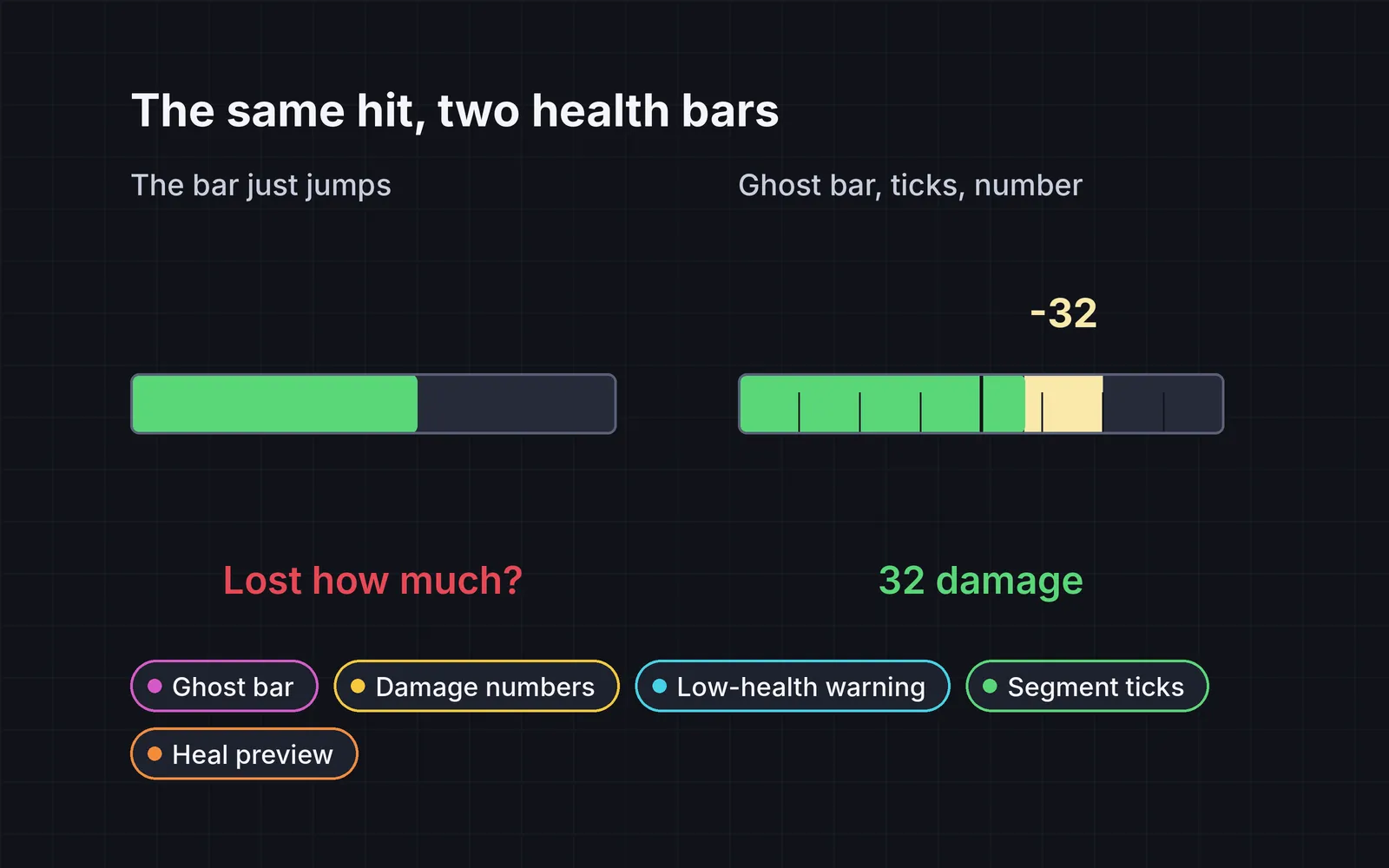
When damage lands, the main bar drops at once, but a pale chunk stays behind it and shows what you just lost. Hold it for about half a second, then drain it over about 0.3 s. If another hit lands before it drains, restart the hold, so a quick combo reads as one big chunk. In the demo, four quick hits add up to one 31 HP chunk, then a heavy hit follows. In our scripted fight, every lost chunk stayed at full size for at least 0.52 s; on the plain bar, it’s gone at once. Bloodborne uses a related idea: the health you just lost stays visible as an orange segment for a few seconds, and you can win it back by attacking (Bloodborne Wiki).
2. Damage numbers
Each hit pops up its own number at the hit point. It pops from 1.4x to normal size in 0.1 s, floats up 30 to 50 px and fades out over about 0.7 s. The important rule is to spread them sideways: two quick hits of 12 and 4 that land in the same place read as “124”. Tim Cain makes the same point in a talk about damage numbers, and suggests size can show the amount and colour the type of damage (summary of his talk). Critical hits here are bigger, gold and on a red star. In our scripted fight, 0 of 18 numbers overlapped. Godot’s floating-text recipe shows the same float, fade and bigger crits in a few lines (Godot Recipes).
3. Low-health warning
Below 25%, the bar changes colour, pulses about once a second, shows a “LOW HP” label, and the edges of the screen glow red. Street Fighter 6 turns its health bar yellow at 25% (Street Fighter Wiki). Don’t rely on colour alone: a colour change alone is easy to miss, especially for colour-blind players (Game Accessibility Guidelines). That’s why this warning also pulses and has a label. In our test, it was still visible in a greyscale screenshot, and it appeared on the same frame health crossed 25%. A heal turns it all off at once.
4. Segment ticks
Draw a thin tick every 25 HP and a thicker one every 100. Now the length of the bar reads as a number. In the demo, a 400 HP tank loses 75 HP (three thin segments), then 100 HP (one whole block between thick ticks). Without ticks, both just look like “some”. This matters most when characters have very different maximum health, because the same bar length can mean 100 HP or 400.
5. Heal preview
When the player points at a heal, show where it will land: a pale, pulsing segment past the current health, cut off at the maximum. In the demo, the +40 potion shows exactly what it will add, and the +60 potion’s preview stops at max and says how much would be wasted. When the player drinks it, the bar fills over about 0.3 s instead of jumping. World of Warcraft’s interface has been able to show incoming heals on a character since 2010 (Warcraft Wiki). On a phone, tap a potion once to preview it and again to drink.
Keep it quiet
A health bar sits on screen for the whole game, so every trick should stay small:
- Short timings. About 0.5 s for the ghost chunk and 0.7 s for a damage number. Longer, and they pile up in a busy fight.
- Warnings that stop. The low-health pulse should end the moment health is back above 25%, or players learn to ignore it.
- Fewer numbers in a crowd. With dozens of hits a second, numbers can’t all fit. In our overload test (20 hits 33 ms apart), 7 pairs still overlapped. If your game hits that often, merge hits on the same target into one number.
If your hits themselves feel weak, that’s a different fix: see hitstop and four more impact tricks.
Add it to your game
- Copy the skill at the end of this page into your project.
- Ask your agent: “Make it easy to see how much each hit took in my game.”
- Play it, then tune in plain words: “The pale chunk drains too fast.”
Art and sound in the demos: Platformer Characters, Kenney Fonts, Impact Sounds and Interface Sounds by Kenney (CC0).
The skill that made it work
This is the whole skill we gave Claude Code. Copy it into your project and ask your agent to make your health bar show what just happened. The last step makes it check a scripted fight, including a greyscale screenshot of the warning.
- Find where health changes (damage, healing, death, max-health changes) and how the bar is drawn now.
- Put every trick behind one named switch in a single settings object, all on by default, so each can be tested on its own.
- ghost-bar. When damage lands, drop the main bar at once, but leave a light-coloured bar behind it showing the lost chunk. Hold it about 0.5 s, then drain it over about 0.3 s. If another hit lands, restart the hold, so a combo reads as one big chunk.
- damage-numbers. Spawn a number at the hit point, pop it from 1.4x to 1x in 0.1 s, float it up 30 to 50 px and fade it over about 0.7 s. Spread numbers sideways so two hits never overlap (12 and 4 must not read as 124). Make critical hits bigger, in another colour and shape.
- low-health. Below 25%, change the bar's colour and make it pulse about once a second, and tint the screen edges. Street Fighter 6 turns the bar yellow at 25%. Never rely on colour alone, and stop the warning as soon as health is back up.
- segment-ticks. Draw a thin tick every fixed amount (for example every 25 HP) and a thicker one every 100, so the length of the bar reads as a number.
- heal-preview. When the player picks or hovers a heal, show the health it will add as a pale, pulsing segment past the current fill, clipped at max. When the heal happens, fill the bar up over about 0.3 s instead of jumping.
- Measure it. Run a scripted fight with hits of known sizes, tricks on and off. Report how long each lost chunk stays visible (at least 0.4 s), how many damage numbers overlapped (should be zero), how many frames the low-health warning lagged after crossing 25% (should be zero), and whether a greyscale screenshot still shows the warning.
Save it as .claude/skills/health-bar/SKILL.md in your project. Or connect your agent and type /aigamedev: it loads this skill with its reference files and the results from this post.